When you open a Power Platform environment and you have kept all of the defaults for URL configuration, you may find yourself greeted with a hideous looking URL. It gets even worse if you open a Model-Driven Power App, and you may find yourself sharing a link with your end users like the one below!
orgcb6ad6d34.crm11.dynamics.com/main.aspx?appid=e4ddc706-94d0-ee11-9070-002248c5ea00
Fortunately we can make this far more legible and memorable for the end user using two small configuration changes to change the elements in bold, leaving us something like this:
aaronkgumbs-dev.crm11.dynamics.com/apps/projects
You will need elevated privileges to perform these actions, and if in doubt, speak to IT or your System Administrator to request these changes!
Replace The Prefix
For the part of the URL that belongs to your Power Platform environment (before crm11.dynamics.com), you can do this in the Power Platform Admin Centre.
Head over to https://admin.powerplatform.microsoft.com/, click on Environments in the left-hand navigation, and locate the environment that you’re looking for.

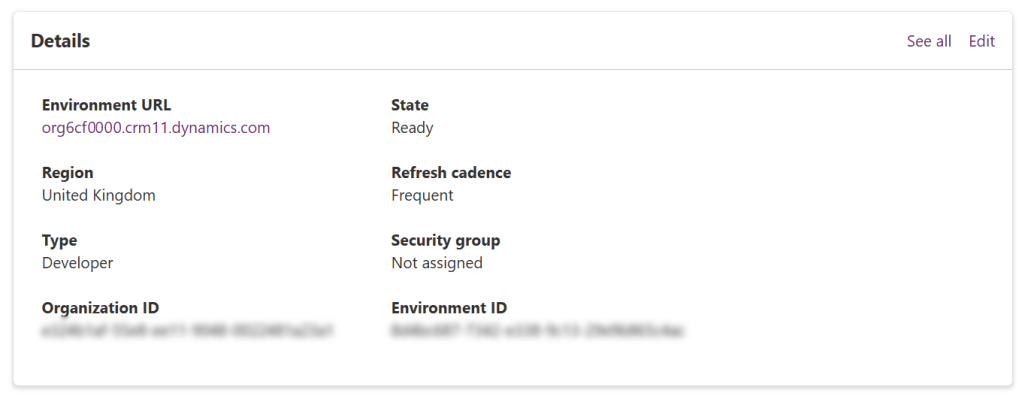
Click on the chosen environment, and notice in the Details panel that you’ll see the current URL and an Edit button in the top-right. For the eagle-eyed, I’ve edited the URL to something invalid for the purpose of these screenshots!
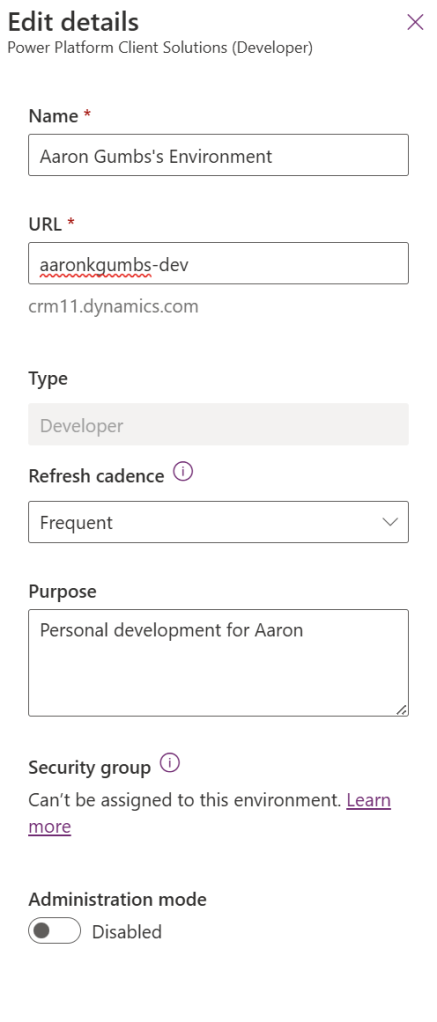
You’ll notice a fly-out from the right-hand side of your screen. You’ll notice that the Environment URL is now editable, which you can replace and then click ‘Save’.
Let your end users know that the environment’s URL has now changed, and ask them to replace their old browser Bookmarks with the newly configured URL!
Replace the Suffix
Now unfortunately this part is only applicable to Model-Driven Power Apps, but nonetheless it still provides a better experience for the end user!
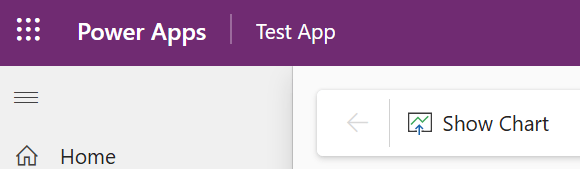
Open up a Model-Driven Power App in your browser, and click on the name of the app in the navigation bar. In my example, it doesn’t look like a button but when you hover over ‘Test App’ you’ll see an underline and notice that it’s clickable.
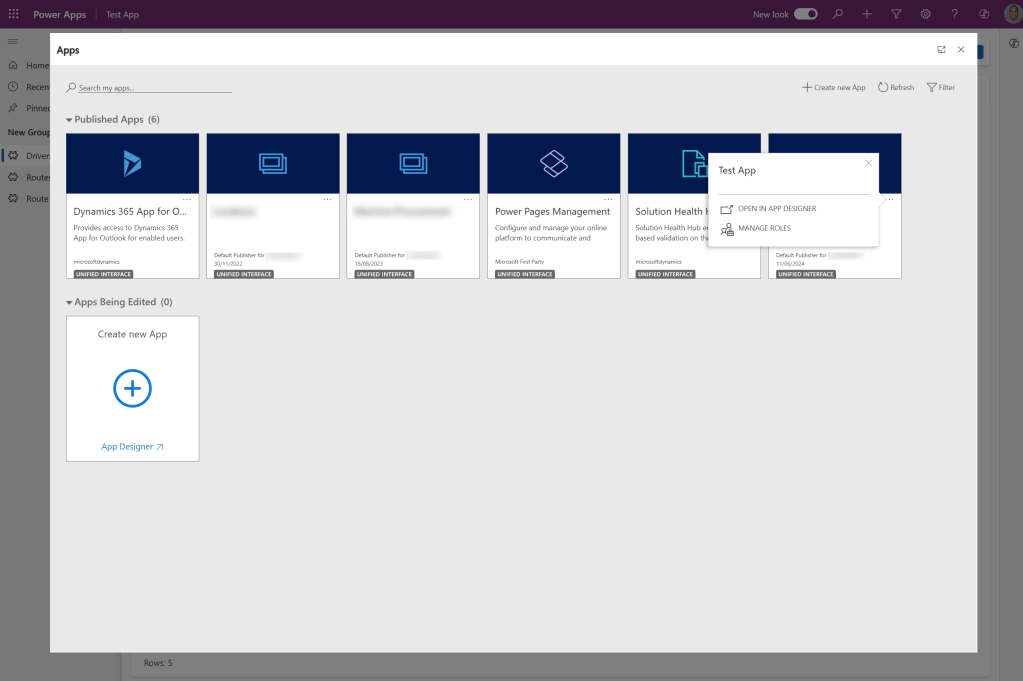
The old app launcher (a real blast from the past!) will open, and you now need to click on the three dots within the container that matches your app’s name. Trust the process – you need to click on ‘MANAGE ROLES’.
Initially the fly-out will show Roles, but the title above called ‘App URL Suffix’ is expandable, and when clicked it’ll automatically collapse the roles.
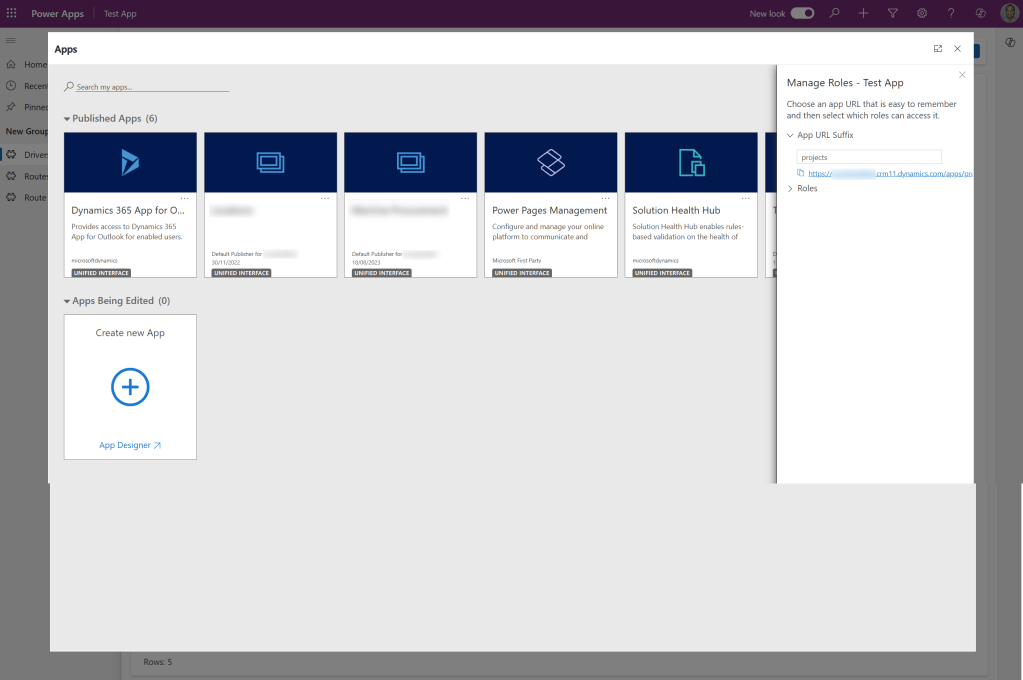
Enter your preferred suffix, and there you have it! Again, remember to communicate with your end users, however, with this example the old URL will remain in place and this more friendly suffix acts as a redirect rather than a replacement.
 AaronKGumbs