I have an interesting challenge.
I am capable of configuring the Power Platform, but when it comes to my own personal productivity I struggle to keep up the momentum to continually engage over time. This isn’t because the solution doesn’t solve a need, rather its that every single app and service is fighting for my attention in a role where my day varies from one to the other – as soon as I lose my rhythm, I simply forget that solutions exist and then suddenly remember when things become challenging again because I fall into ‘reactive’ mode.
Here are some thoughts on how you can avoid the above, which have also featured in my “How to Increase Personal Productivity in the Power Platform” webinar.
Bring information to me!
Microsoft 365 alone has so many different apps and services, and sometimes it can take 15-30 minutes or so just to get started in the morning as you start to sift through information in different areas. Luckily, Microsoft has over 1000 Connectors for Power Automate and you can start to bring information to where you start your day!
Being Aaron, I have a smart kettle that boils at 8am ready for my first cup of the day, and this is where I’d waste that time sifting through different apps! Now, Microsoft Teams pings me at the same time as my kettle boils and brings my most important To Do list items to me alongside some other information across our tenant. I can spend less time doing admin and more time feeding the cats or the rabbits!

Now you could argue “what’s the harm in clicking the equivalent app in Teams that brings together all of your To Do items”, but this relies on me going to it, and then remembering to find it if it’s not showing prominently in my Teams interface (left rail space is too precious!). Plus, admittedly my focus is not my strongest at 8am either, especially in a busy household as everyone else rushes around to leave the house and so it’s easy to become distracted!
This notification is not just about the To Do list, but it’s about creating a point of consistency at one of the busiest parts of my day with links to encourage my next action, which is to open a Power App or to open Microsoft To Do itself. My daily flow has become more predictable and the work comes to me at the right time every day.
Make reactive solutions easy to find.
If for whatever reason you’re not able to use automations to bring information to you, you can always consider the capabilities in other apps and services that can help you to reach your solution much more quickly.
My favourite one is to use Teams Channels which allows many different types of tabs including Power BI and Power Apps, but if in doubt, you can always default back to using the Website tab to point to your cloud service too.
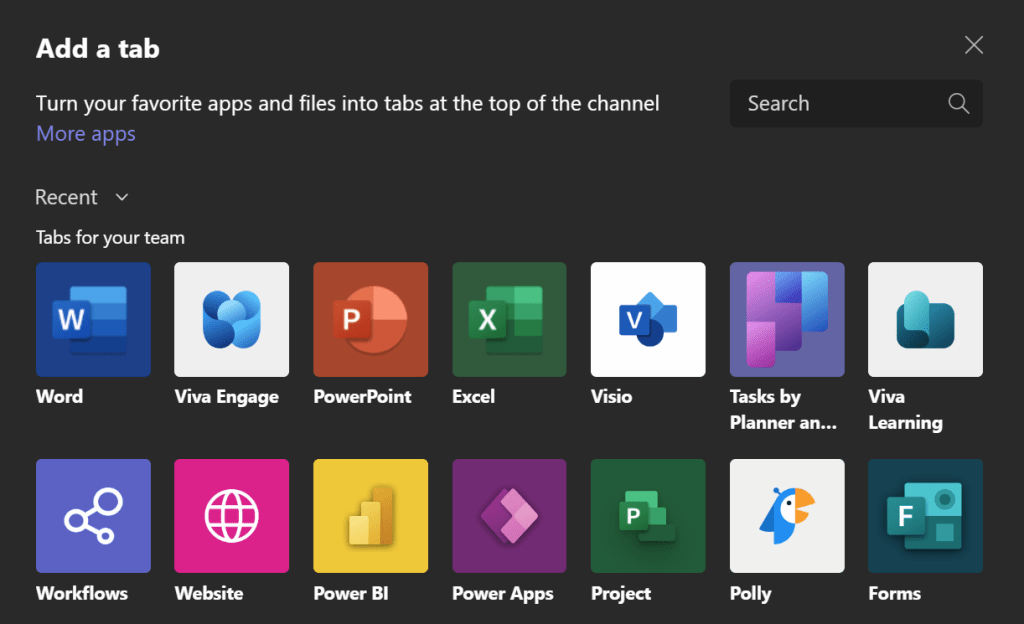
For more specialist scenarios, remember you can also do any of the following which further reduces the number of times someone has to open up a browser and find the solution before they can actually use it:
- Use the capabilities of Power Apps to interact with Power BI visualisations from one window: Embed a new Power App in a Power BI Report – Power BI | Microsoft Learn
- Create a custom UI with connections to other cloud services and embed this screen inside your existing model-driven Power App: Add an embedded canvas app on a model-driven form – Power Apps | Microsoft Learn
- Still going to weekly meetings and sharing updated data on a particular theme? Add your Power BI report to the slide deck so that you can let the visualisations do the talking without any manual copying and pasting: Add a live Power BI report page to PowerPoint – Power BI | Microsoft Learn
- Change when and how your Desktop Flows can trigger by using a Cloud Flow shell to run it on a schedule or based on a cloud service event: Trigger desktop flows from cloud flows – Power Automate | Microsoft Learn
Keep in mind ‘what tool when?’.
In my final thoughts for this blog post, I want to share with you something that one of my university lecturers used to repeatedly say to our group.
Never re-invent the square wheel.
This has stuck with me throughout my whole career. The Power Platform has a wealth of connectivity to all sorts of cloud services and solutions, with a fallback of HTML snippets, a URL, or an API to get around some of the more challenging problems for sharing or receiving information. Try to make sure that your bespoke solution doesn’t solve something already readily-available.
Take the example below:
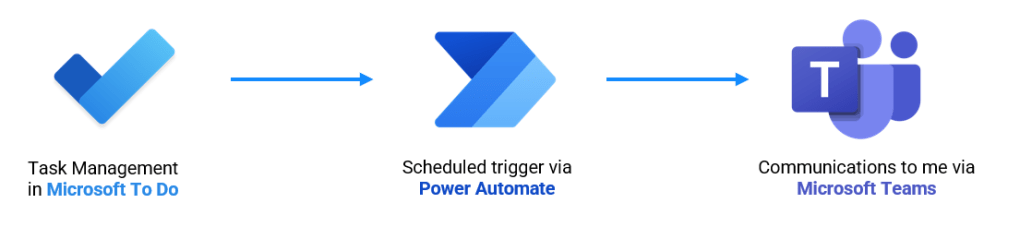
My automation isn’t trying to rebuild task management or communications, it’s simply trying to bridge the two. If I were to rebuild Microsoft To Do functionality in a Power App then I may achieve 100% of my exact requirement, however it may be entirely bespoke and unusable for others. It also doesn’t move forward with Microsoft’s own updates to their own task management tools, and the time to deliver would likely outweigh the benefit considerably when I factor in the initial build and testing which may defeat the original purpose!
What personal productivity tips and tricks have you come up with? Feel free to share them below ⤵️
 AaronKGumbs